

How to use FashionDraw
The full guide. Read it top to bottom and you have the entire workflow: from a photo of a garment to a finished collection ready for the manufacturer and the e-commerce site.
Introduction
FashionDraw is a studio that turns a single photo of a garment into the assets a fashion brand actually ships. A clean technical drawing, an editable SVG you can refine, a realistic visualization in the fabric and color of your choice, packshots for e-commerce, and model shots for the lookbook.
Everything runs on our own proprietary models, trained specifically on garments. You do not need to know how the models work to use them. You only need to know what each module is for and the order to use them in.
How it works
The platform is built for one thing: letting a single designer go from photo to manufacturer-ready collection without leaving the browser. The modules are sequential, and this is the order you use them in.
Sketch the garment from a photo
Open Sketch. Drop in a phone photo of the garment. Add reference images for details you want changed (a different sleeve, a different collar, a trim). The model gives you a clean technical drawing.
Calibrate in the chat
Open the result. Inside the chat you prompt for changes ("longer sleeve", "remove the pocket"), drop in extra reference images mid-conversation, delete branches that did not work, and go back to any earlier version to branch off again. Keep going until you are satisfied with the technical drawing.
Refine in the SVG Editor
When the picture is right, open the SVG Editor. Our research showed this is the moment where the final-mile refinements happen best. We built a dedicated SVG model that turns the picture into a real, editable vector file, so you can tweak the last details on actual paths instead of pixels.
Visualize the fabric with Imagine
Now that the technical drawing is locked, send it through Imagine. Pick a fabric, pick a color. You get a realistic render of the garment in that material. No need to order physical samples from the manufacturer just to check if a wool works in a color, you can see it first.
Send the tech pack to the manufacturer
You now have everything: the SVG tech pack plus the Imagine fabric renders. Send the bundle to your manufacturer with confidence. They produce it. You skip a whole sampling round.
Make the campaign assets
While the manufacturer is making the collection, use Packshot for retail product photography and Model Shot for the lookbook. By the time the garments arrive, your e-commerce site and your campaign are ready to launch.
One designer, one collection, one day
This is what a real day on the platform looks like.
Be specific in your prompts. "Make the collar 2 cm wider, in the same fabric" gets you what you want. "Change the collar" does not. The same applies to references: when you can show a picture of what you mean (a fabric swatch, a trim detail), drop it in.
Sketch
Photo to clean technical drawing. The starting point of every workflow, and the format pattern makers and factories actually need.
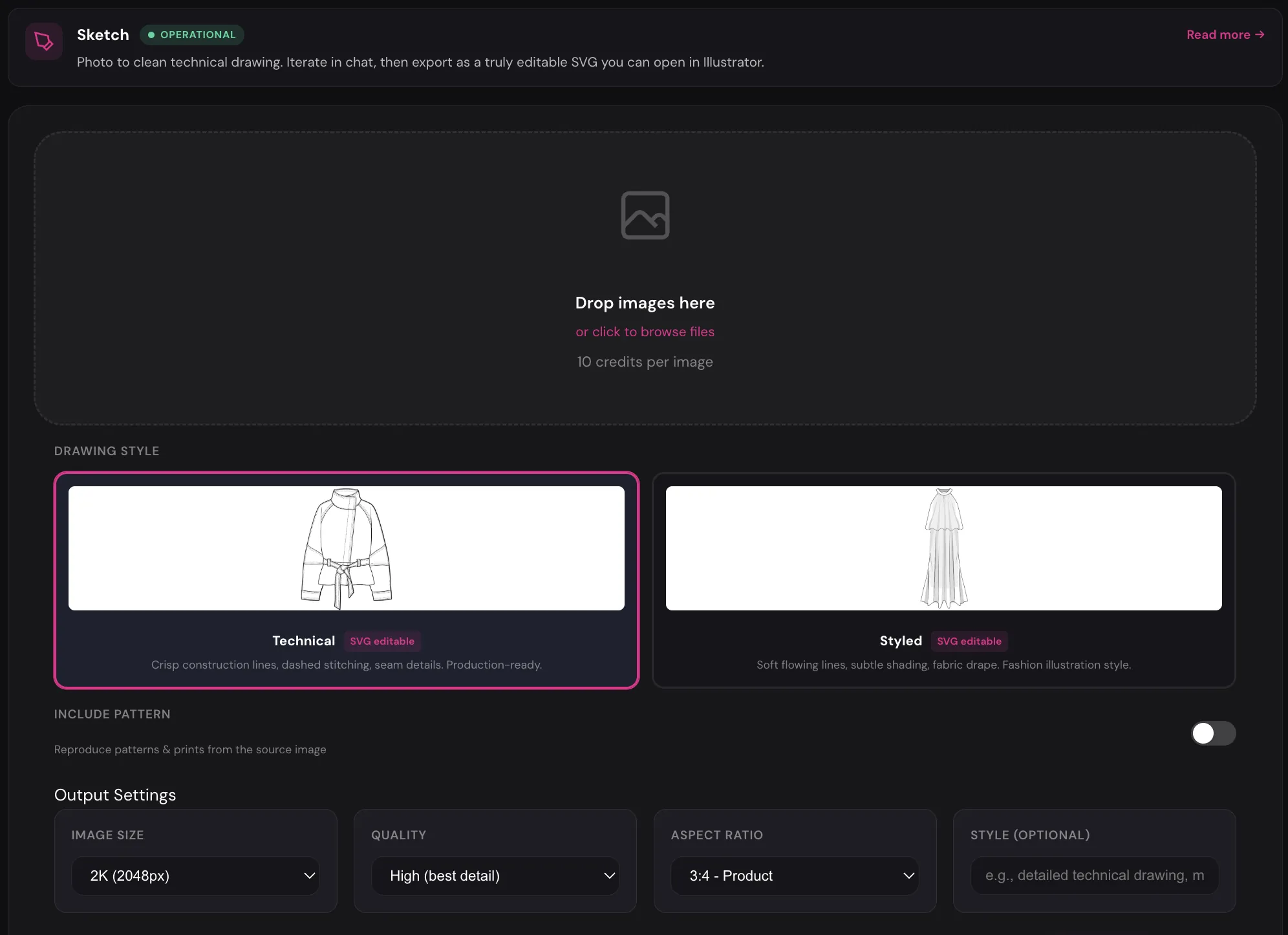
Settings
Upload area 10 credits per image
Drop garment photos or click to browse. Multiple files at once are fine. Phone shots work. Even lighting, no clutter behind the garment.
Drawing Style: Technical default
Crisp construction lines, dashed stitching, seam details. Production-ready.
Use when: tech pack, pattern maker, factory.
Drawing Style: Styled
Soft flowing lines, subtle shading, fabric drape. Fashion illustration style.
Use when: moodboard, buyer deck, anything hand-drawn rather than technical.
Include Pattern off
When on, the model reproduces patterns and prints from the source photo (stripes, florals, checks) inside the technical drawing.
Use when: the print is part of the design.
Image Size 2K default 1K · 2K · 4K
Output resolution. 2K is the sweet spot for tech packs and web. Use 4K only when you plan to print.
Quality High
High prioritizes detail. Standard runs faster. Stay on High for production work.
Aspect Ratio 3:4 Product
Ten presets. 3:4 is right for almost every garment. Switch when the asset has to fit a specific channel (Instagram, banner, print).
Style (optional)
Free-text field. Add words like "detailed technical drawing" or "minimalist sketch" and the model leans that way. Leave empty for the default.
Detail References
When you upload exactly one base photo, a Detail References panel appears. Add up to five extra images (a different sleeve, a pocket, a trim, a collar) and describe how each should be applied. The model blends them into the technical drawing.
Use when: you want the silhouette of one garment but a detail from another.
Why each iteration looks slightly different
Sketch is built on a diffusion model, the standard architecture for AI image generation. Diffusion models produce a slightly different result every time, even with the exact same prompt. That randomness is intentional. It is how the model explores variations. If a result is close but not quite there, regenerate. Two or three rolls usually land somewhere good.
Chat & references: where the real work happens
FashionDraw does not have a separate "AI Chat" module. The chat is built into every result. Click any sketch in the gallery and it opens in a chat view, where you do the real refinement.
Inside the chat you can:
- Prompt for changes. "Longer sleeve", "remove the front pocket", "swap buttons for a zipper". The model produces a new version.
- Drop in reference images mid-conversation. Want this sleeve from another photo? Drag the photo into the chat and ask the model to apply it. References are the most reliable way to communicate detail. Words are good. Pictures are better.
- Delete messages. If a branch went wrong, remove it.
- Go back to any earlier version. The whole history is preserved. Open an earlier message and branch off it. Nothing is destroyed when you try something new.
Generate a small batch first, pick the closest one, then iterate in chat. Trying to nail it in one prompt usually takes longer than running a few rolls.
SVG Editor
After the sketch is calibrated, the SVG Editor is where you do the last-mile refinements. We built our own SVG model that turns a normal picture into a real vector file with editable line paths, so you can fix small details directly on the lines instead of going back to the diffusion model.
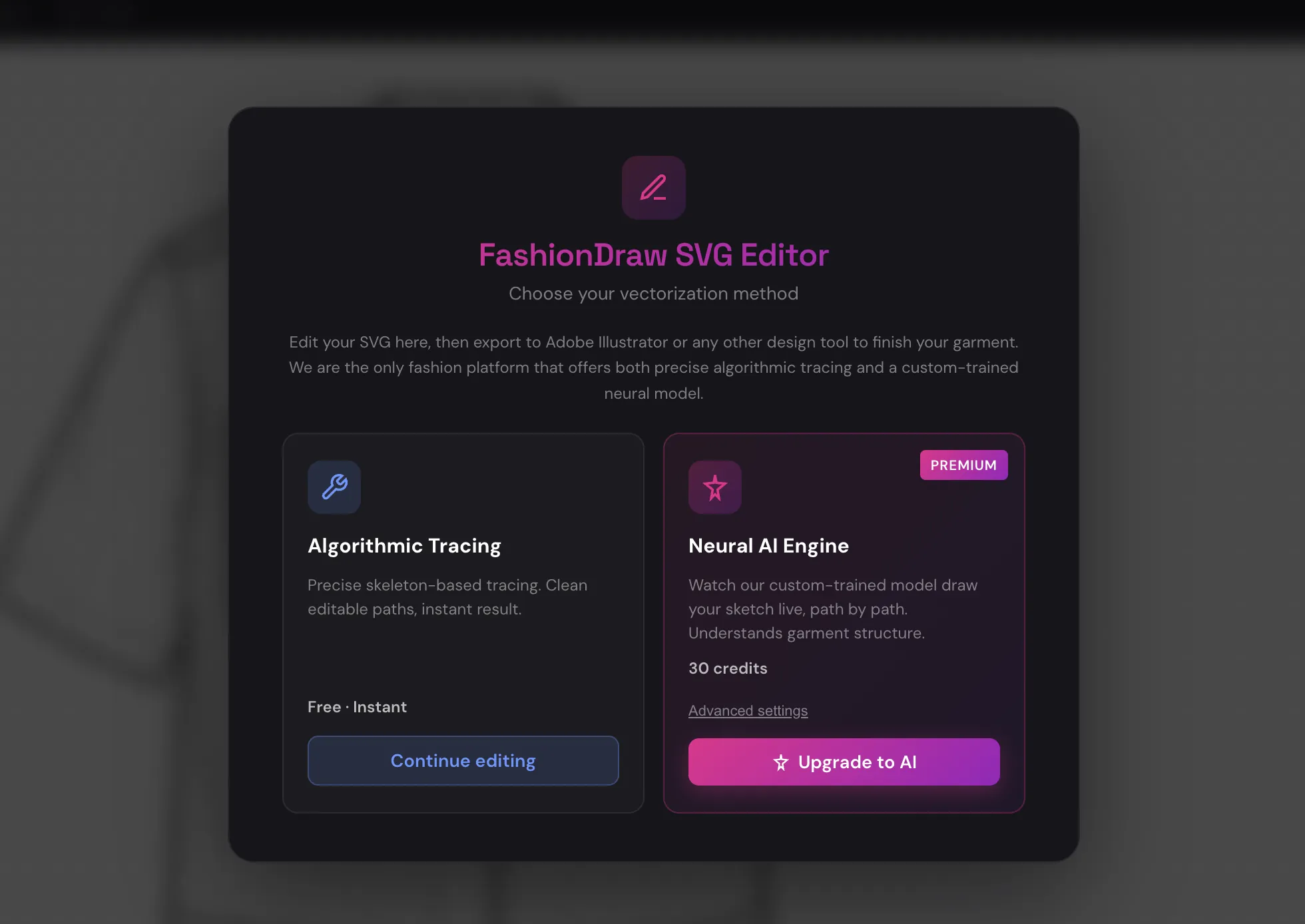
Algorithmic tracing Free · Instant
A classic skeleton-based tracer. It scans the image and converts every dark pixel region into a vector path.
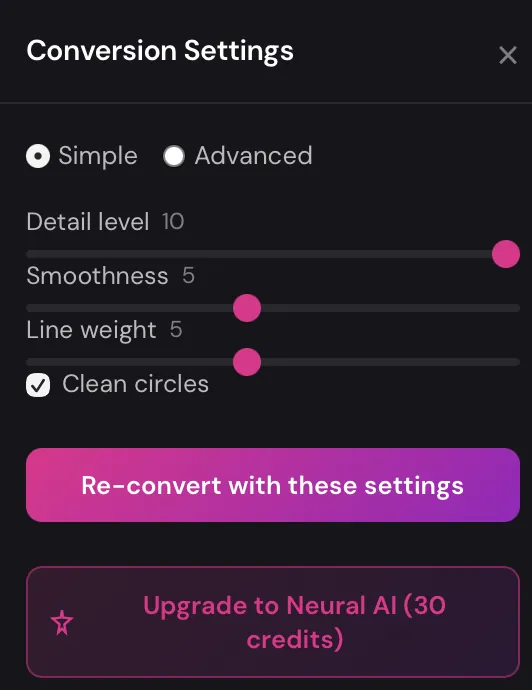
Simple / Advanced
Simple shows three sliders. Advanced exposes binarization, stroke width, and noise thresholds.
Detail level 0 – 10
How much fine detail to keep.
Effect on the SVG: higher captures more (every small seam, every fold) but also picks up image noise. Lower gives cleaner output that may miss small features.
Smoothness 0 – 10
How much to smooth corners and curves.
Effect on the SVG: higher means softer, fewer-node curves (easier to edit in Illustrator). Lower means sharp corners and faithful angle reproduction.
Line weight
Stroke thickness of the output paths.
Effect on the SVG: changes how thick every line draws. Does not change path shape. You can change it again in Illustrator.
Clean circles
Detects round shapes and rebuilds them as clean circles instead of bumpy polylines.
Effect on the SVG: turn on for buttons, grommets, eyelets. Turn off if the drawing has stylized hand-drawn circles you want to keep.
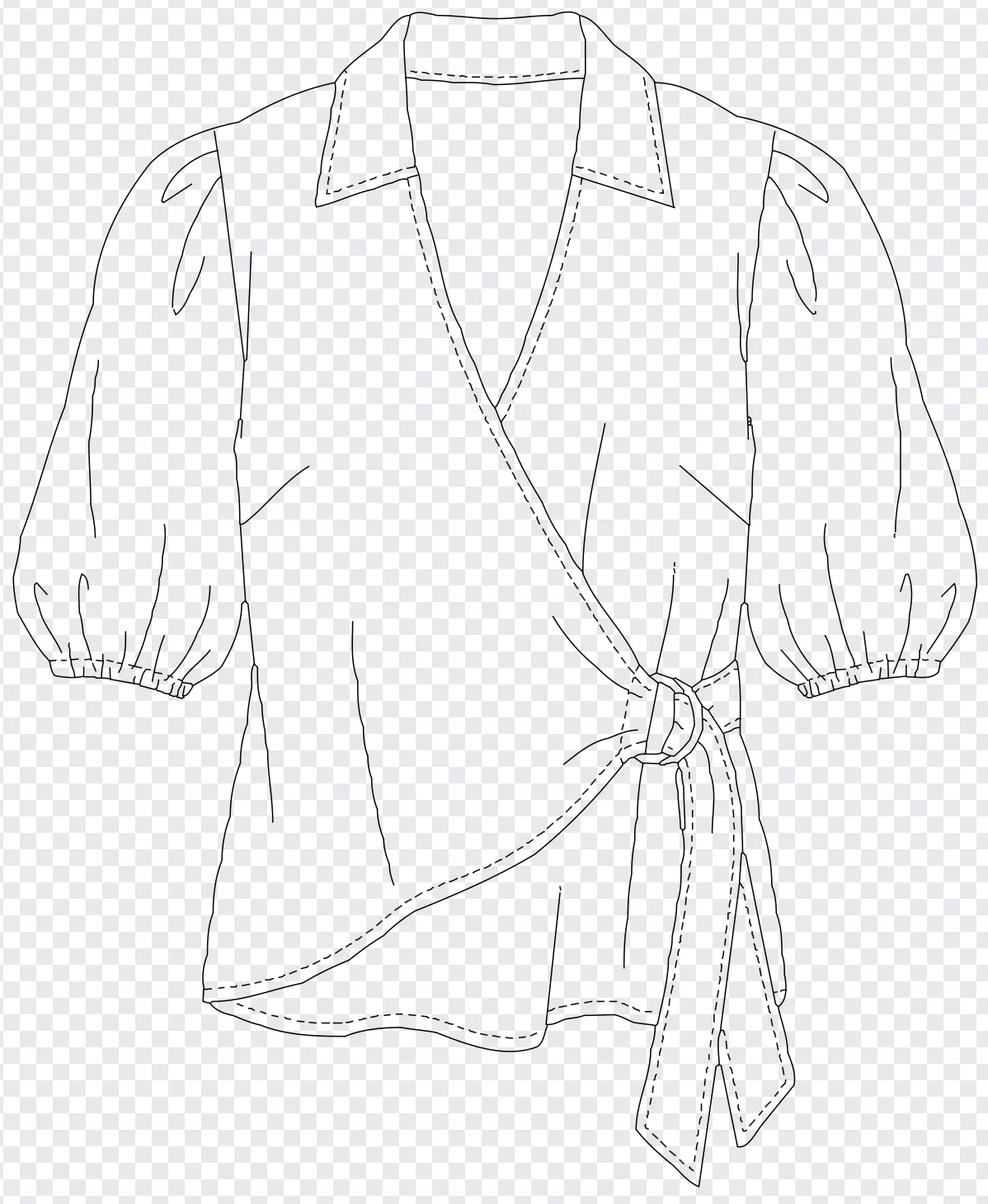
It looks at where the image is black and turns those pixels into paths. That is all it sees. It does not understand brushes, so stitch lines from a technical sketch usually flatten into a plain line or disappear. Lines can also be slightly barbed where the tracer hesitated on edges.
It is free and instant. Useful for a quick draft. For production work, use AI tracing below.
AI tracing Premium · 30 credits
Our proprietary, custom-trained model. It draws the sketch live, path by path, and understands what a garment is, where seams sit, what stitching is, and how panels connect. Stitches stay as stitches because they get their own dedicated brush.
It works out of the box. Power users can tune it from the Advanced AI Settings panel. Every parameter falls back to a tested server default when Use default is checked.
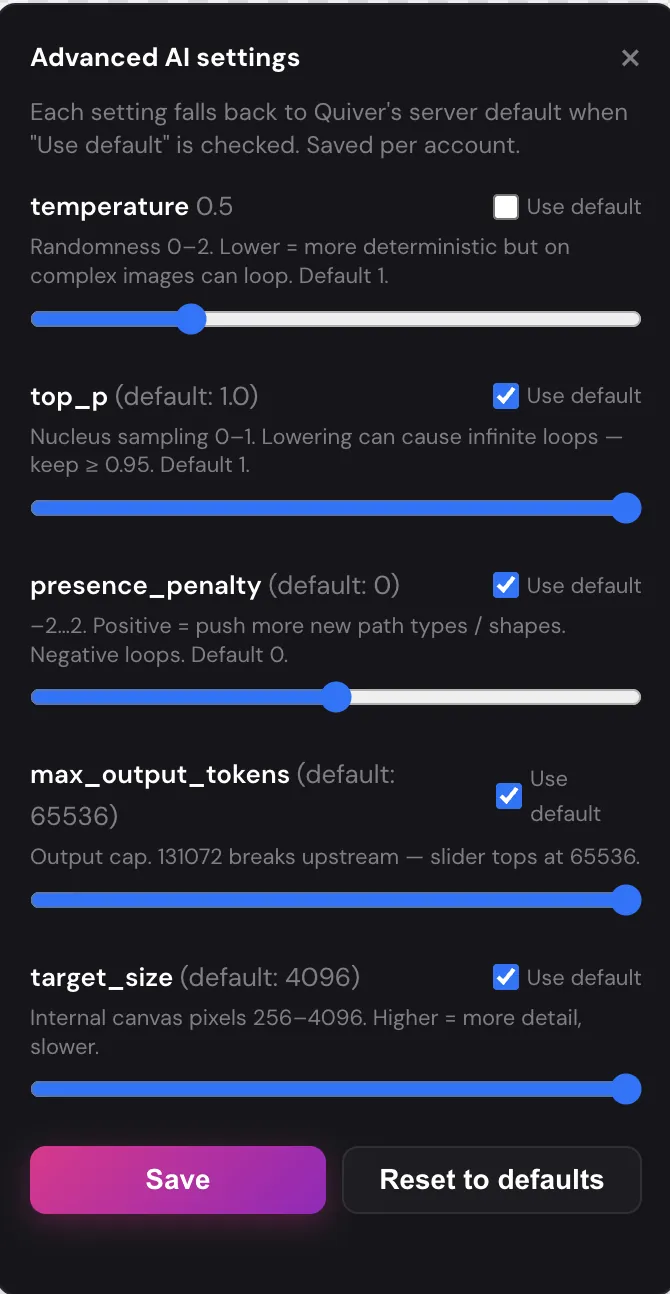
The five parameters, in plain English
Each parameter controls a different aspect of how the AI decides which line to draw next. The defaults are tuned for garment sketches. Change one at a time and test the result.
temperature default 1.0 0 – 2
What it does: how "creative" the model is when picking the next path. High lets it try unusual paths and brushstrokes. Low makes it pick the most likely move every time.
Effect on the SVG: higher (~1.4 and up) produces more varied line styles, sometimes catching unexpected details, sometimes adding flourishes you did not ask for. Lower (~0.5) gives cleaner, more predictable line work.
top_p default 1.0 0 – 1
What it does: nucleus sampling. The model ranks every possible next move by likelihood and only considers the top slice. 1.0 means "consider everything." 0.9 means "only the top 90% of probability mass."
Effect on the SVG: higher means more variety in path types and brush styles. Lower means the model sticks to its most confident moves only.
presence_penalty default 0 −2 – +2
What it does: tells the model "do not repeat path types you already used." Positive values push toward NEW shapes. Negative values push toward repetition.
Effect on the SVG: positive (0.2 – 0.5) gives more variety, more brush types, more detail variation. Negative makes one stroke style dominate, and at extremes loop.
max_output_tokens default 65 536 1 – 131 072
What it does: the hard cap on how many drawing moves the model is allowed to make. Each token is roughly one path segment.
Effect on the SVG: higher caps let the model draw every seam, every fold, every stitching detail. Lower caps stop the model early, leaving a sparser SVG.
target_size default 4096 128 – 4096 px
What it does: the internal canvas the model thinks at, in pixels. Your image is resized to this square dimension before vectorization.
Effect on the SVG: higher means the model sees more pixels of your sketch and captures fine detail (small stitches, tiny seam lines). Lower is faster but loses small details.
How to tune them
If you do not know where to start, leave every parameter on its default. The defaults are tuned on thousands of real garment sketches and are right for nearly every case.
presence_penalty to 0.3, or raise temperature toward 1.2.temperature to 0.7, leave top_p at 1.0.target_size to 4096 and raise max_output_tokens to its cap.max_output_tokens. The model ran out of budget before finishing.temperature or top_p too far.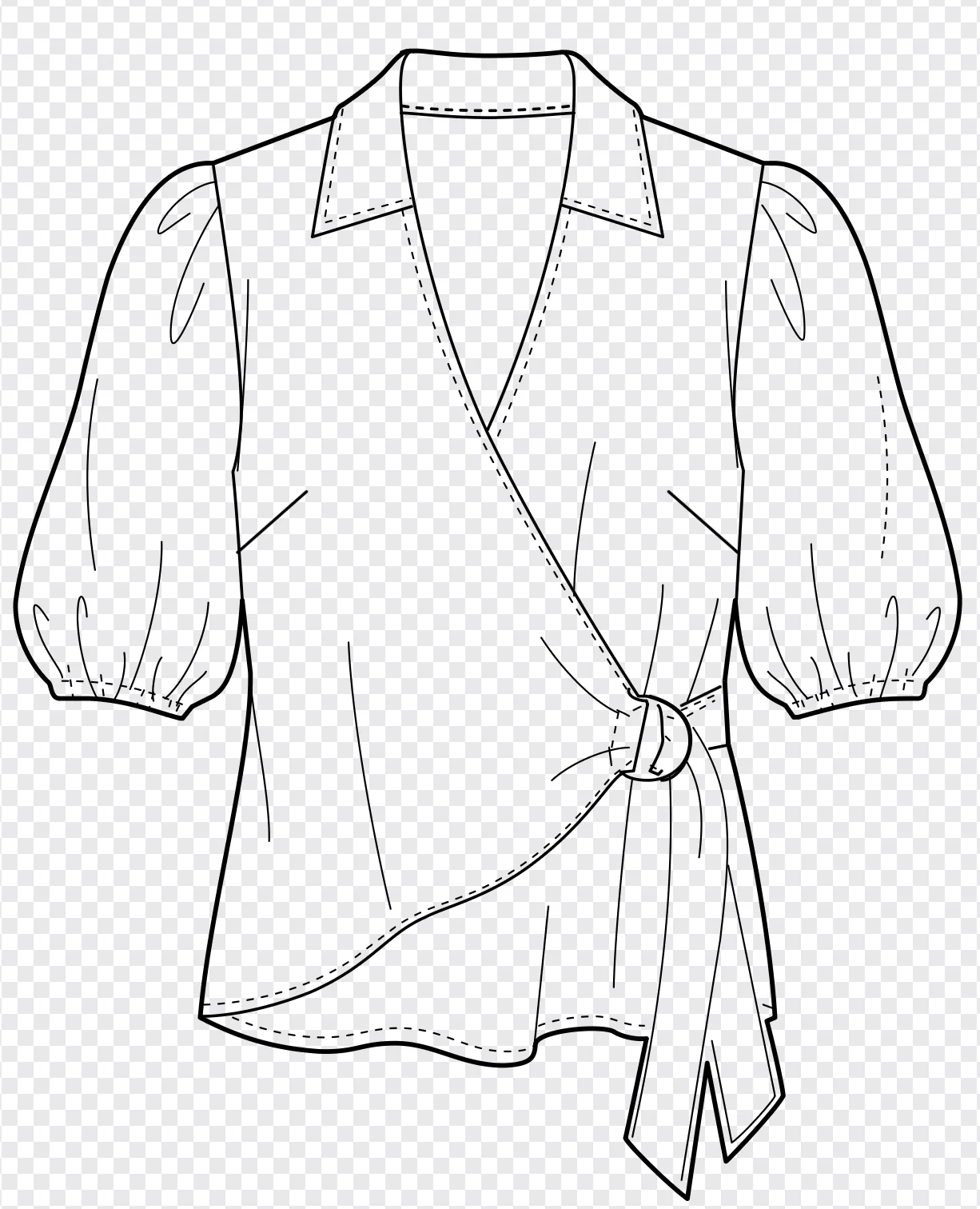
Real line paths, not cut-out shapes
Almost every "SVG converter" on the market today does not actually draw lines. It traces the silhouette and gives you back a cut-out shape, a filled outline of the dark pixels. Useful for logos, useless for a technical drawing where every seam and panel line needs to be individually editable.
FashionDraw generates true vector line paths. Every seam is its own path. Every panel line is its own path. You can grab any line in Illustrator and move it independently, exactly like a designer drew it. Plus a separate brush you can drag for stitch lines, so stitching stays as stitching.
One limit: the junction
SVG as a format has one structural limit. It cannot natively describe a junction, meaning a single connected region where several separate lines meet at one point. To SVG, those are independent strokes, not one shape.
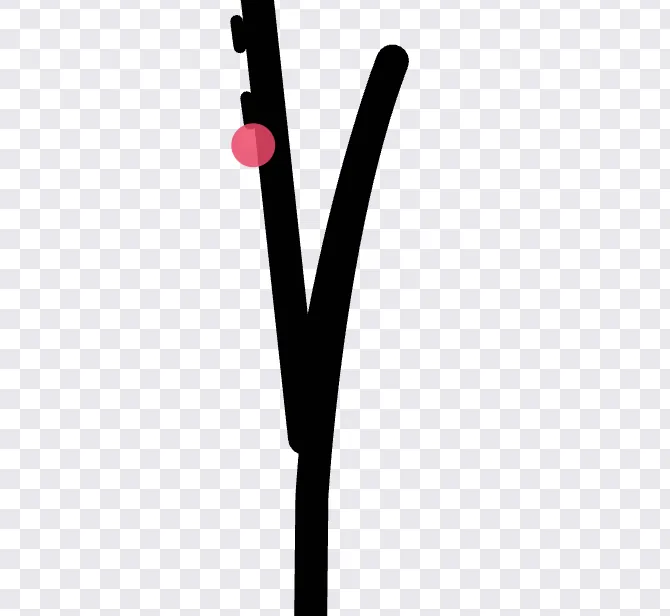
You can see it in the image above. Three line ends meet at a Y, but they are not joined. The fix is one click inside the editor (Select & bridge) or a quick join in Illustrator. We are also building a model that writes native Adobe Illustrator .ai files, where junctions are resolved automatically with no SVG step in between.
Editing tools inside the editor
- Select & bridge. Join the endpoints of two paths to close a shape.
- Node markers. Show every endpoint so you can see exactly where paths begin and end.
- Undo & redo. Full history while you tidy up.
- Compare with original. Overlay the source image to check accuracy.
Imagine
Visualize the finished technical drawing as a real garment in any fabric and color. Skip the physical sampling round, then send the renders to the manufacturer alongside the SVG tech pack.
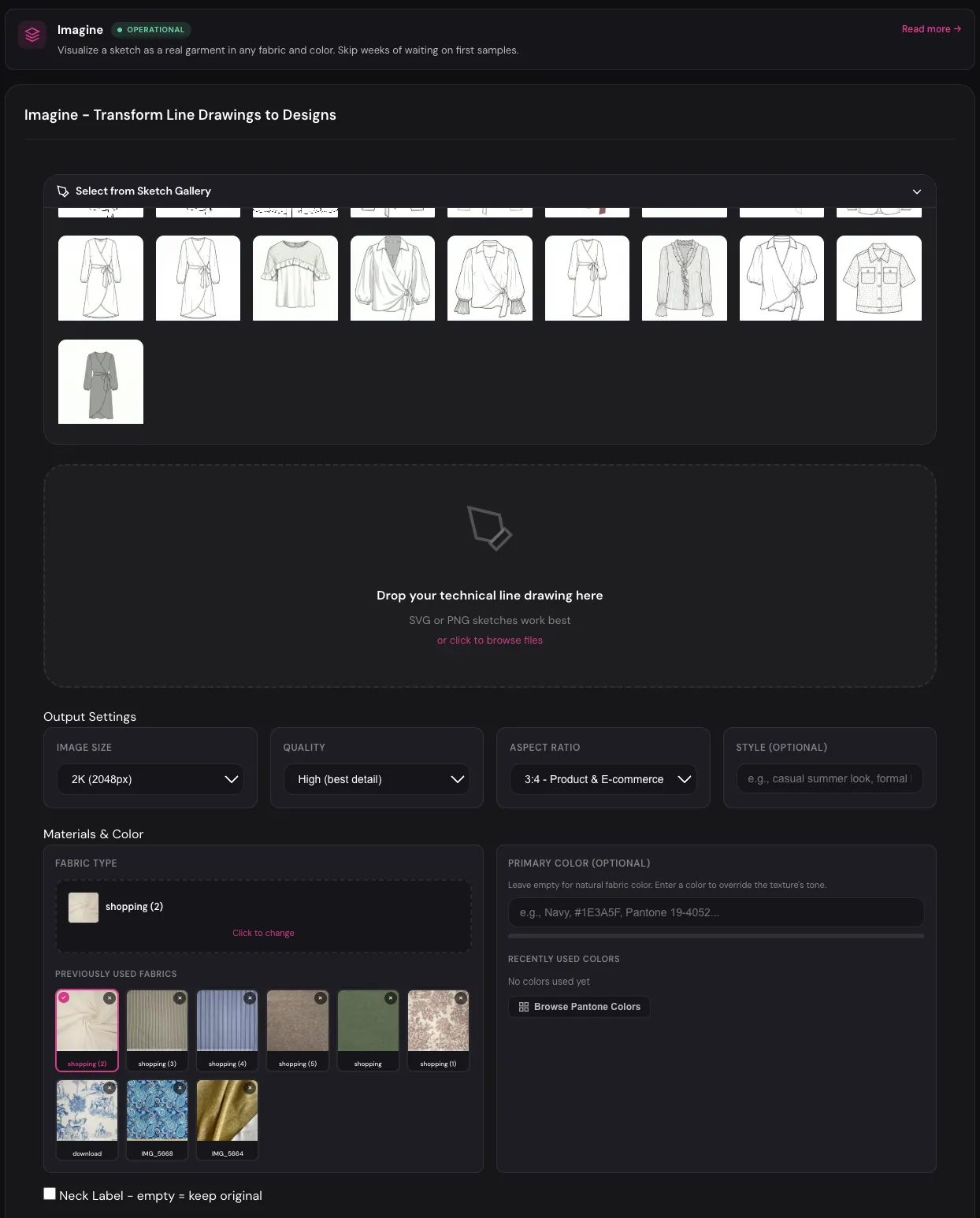
Settings
Select from Sketch Gallery
Pull a finished sketch straight from your Sketch results. Skips re-uploading.
Drop your technical line drawing here
Upload a sketch from outside FashionDraw. SVG or PNG line drawings work best.
Output Settings: Image Size · Quality · Aspect Ratio · Style
Same controls as Sketch. Image Size 1K/2K/4K, Quality High/Standard, Aspect Ratio (default 3:4 Product), free-text Style hint.
Fabric Type
Three ways to set the fabric: drag a swatch into the drop zone, click Use Original Fabric to keep the source garment's texture, or pick from Previously Used Fabrics.
Primary Color (optional)
Type a color name, a hex code, or a Pantone reference. Or click Browse Pantone Colors for the full library (2310 colors, searchable). Leave empty to keep the swatch's natural color.
Customize fabric per zone
Toggle to assign different fabrics to different parts of the garment (collar, body, sleeves). The system auto-detects zones. Use for contrast pieces.
Neck Label
Toggle on, type your brand or leave blank to keep the source label.
Model Shot
Put the finished garment on a model for the lookbook. Pick a default, upload your own, or generate one with AI. Copyright-free, reusable across collections.
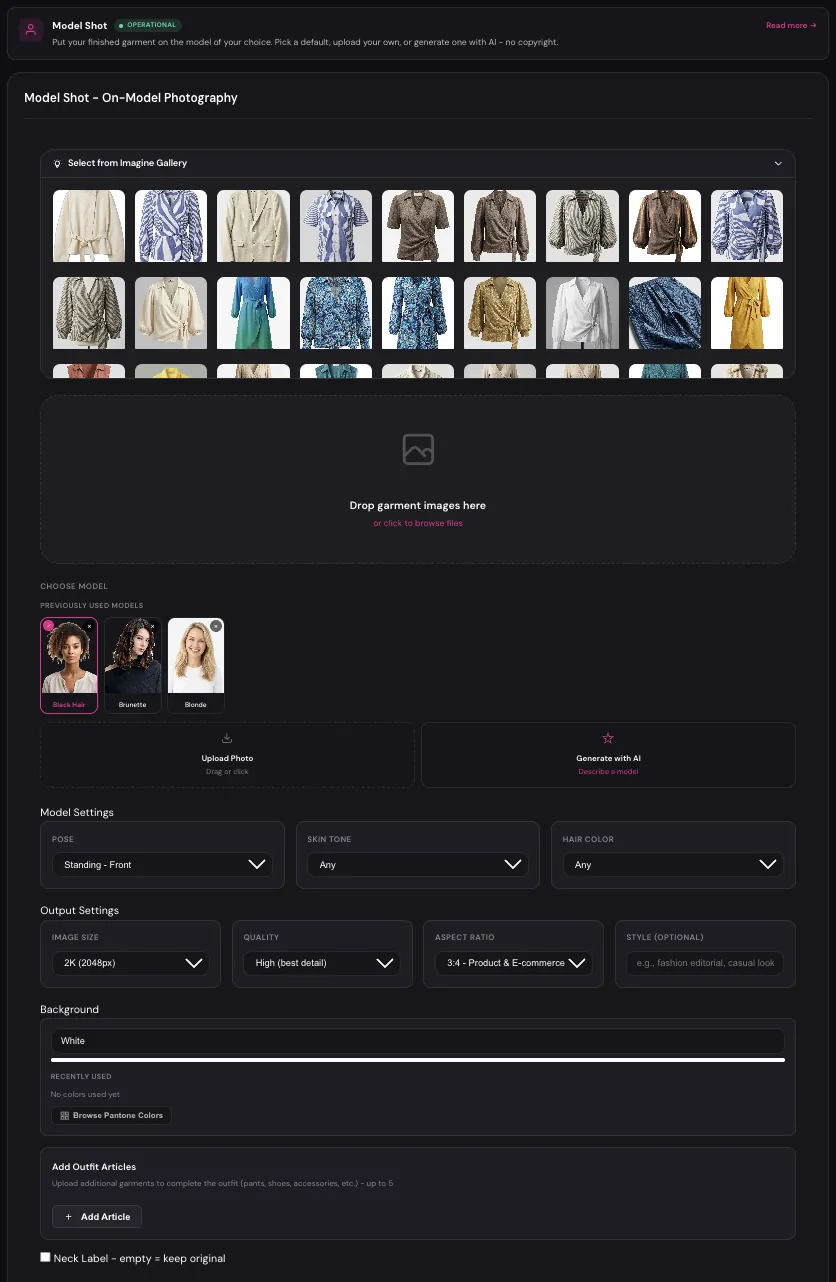
Settings
Select from Imagine Gallery
Pick a finished visualization from Imagine.
Drop garment images here
Upload directly if you do not have an Imagine render.
Choose Model: Previously Used
Every model you have used or generated before is saved here. Click one to reuse it, this is how lookbooks stay consistent.
Choose Model: Upload Photo
Drag a photo of a real person (with consent) or one of your house models. Saved automatically for reuse.
Choose Model: Generate with AI
Describe the model in plain English ("young woman, dark skin, athletic build, short natural hair"). The system creates a fresh, copyright-free model just for your brand.
Pose 6 options
Standing Front, Standing Side, Walking, Casual/Relaxed, Dynamic, Seated. Standing Front for e-commerce, Walking or Dynamic for editorial.
Skin Tone
Eight choices: Any (default), Light, Fair, Medium, Olive, Tan, Brown, Dark.
Hair Color
Eight choices: Any (default), Blonde, Brunette, Black, Red, Auburn, Grey, White.
Output Settings: Image Size · Quality · Aspect Ratio · Style
Same controls as Sketch and Imagine.
Background
Type a color name, hex, or Pantone reference. Default is White. Pantone browser available.
Add Outfit Articles
Upload up to five extra garments (pants, shoes, accessories) to complete the outfit.
Neck Label
Same control as Imagine.
Packshot
Retail-grade product photography from a single garment photo. The kind of shot a retailer or marketplace wants on a product page.
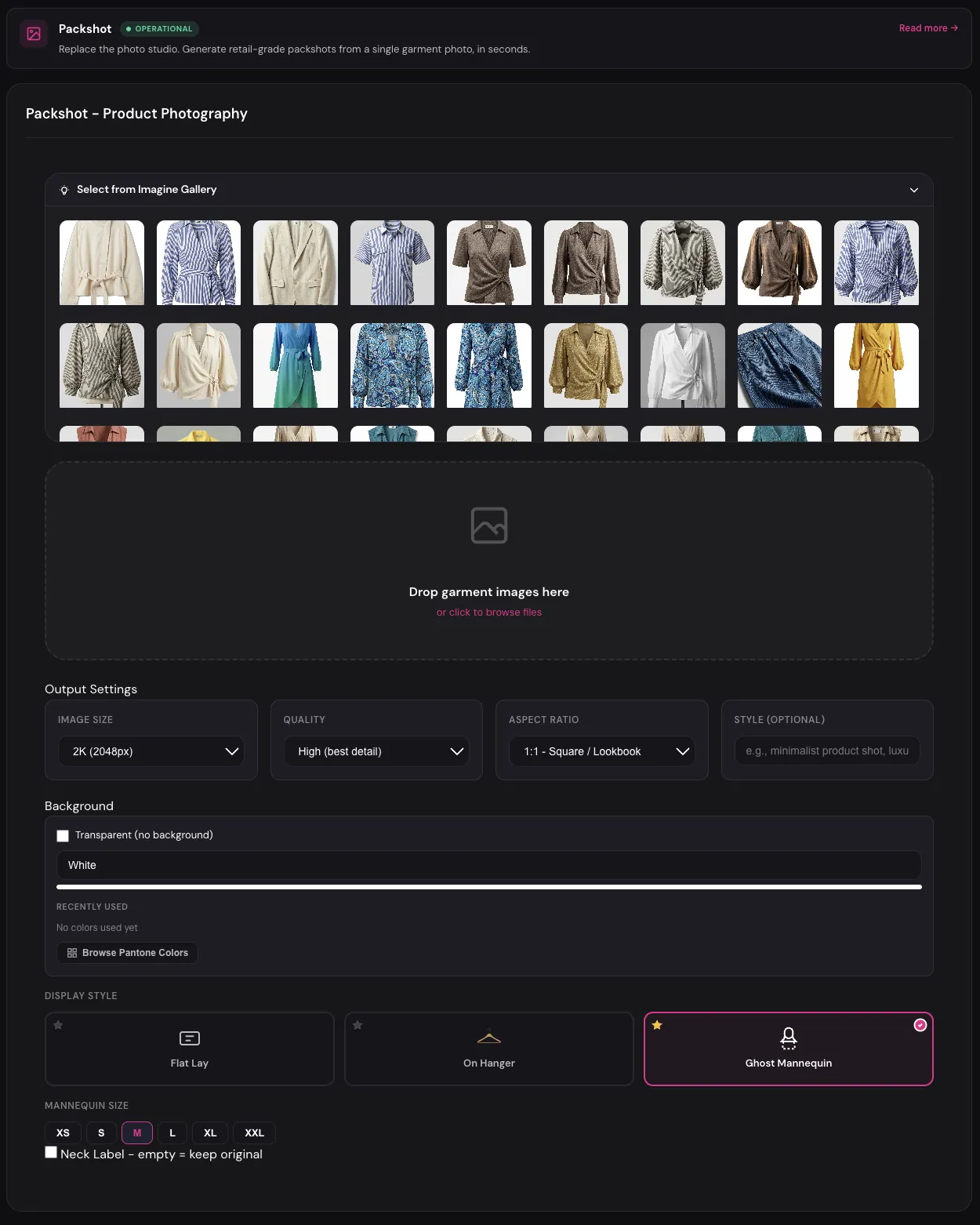
Settings
Select from Imagine Gallery
Pick a finished render.
Drop garment images here
Upload directly if you do not have an Imagine render.
Output Settings: Image Size · Quality · Aspect Ratio · Style
Image Size 1K/2K/4K (default 2K). Quality High/Standard. Aspect Ratio defaults to 1:1 Square for packshots, which is what most marketplaces expect.
Background: Transparent
Toggle on to get a transparent PNG. Hides the color picker. Use for compositing onto another background later.
Background: Color
Type a color name, hex, or Pantone reference. Defaults to White. Full Pantone browser available.
Display Style: Flat Lay default
Garment laid flat. Clean, retail-standard. Use for marketplaces and grid-style product pages.
Display Style: On Hanger
Garment shown on a hanger. Upload a custom hanger or pick a recently used one. Use for boutique brands.
Display Style: Ghost Mannequin
Garment shaped as if a body is filling it, but no model is visible. Set a Mannequin Size (XS through XXL, default M). Standard for premium e-commerce.
Neck Label
Same control as Imagine and Model Shot.
How the AI improves
The models behind FashionDraw improve every single day. Some changes ship quietly in the background. Others come directly from what users report.
We retrain and update the models on a continuous schedule. A result that was a little off two weeks ago may not be off today. You do not have to do anything to benefit from this. New versions roll out automatically.
What helps is your feedback. Every Report button you press tells us where the model still misses, with the exact image and the exact prompt that produced it. That is the most valuable training signal we get.
Reporting & beta access
If a generation is wrong, use the Report button on that result and tell us what is off in a sentence.
What happens
- The result goes to our team for review.
- If we agree the output was below standard, the credits used are refunded automatically and you get a notification.
- The reported case feeds into the next training cycle.
The people who use Report the most shape the product. Users who report consistently and constructively get early access to beta features before they roll out to everyone else.
Use Report when a specific generation is wrong. Use Feedback when you want to request a feature, flag a recurring issue, or suggest an improvement.
Libraries
Three personal libraries that make the modules faster every time you use them.
- Custom Models. Your house models or AI models you have generated. Reusable across Model Shot.
- Custom Fabrics. Fabric swatches and textures. Available inside Imagine.
- Custom Hangers. Your branded hangers. Used in Packshot.
Save anything you use repeatedly. A collection rendered with consistent models, fabrics, and hangers looks like a brand.
Settings & brand
Open the settings menu in the top-right of the dashboard.
- Module prompts. Base instructions added to every generation in a given module. Use to enforce house style.
- Brand settings. Brand name, neck-label text, brand logo, and where it sits on outputs.
- Account information. Email, password, billing email.
- Password & security. Change your password.
Credits
Generations cost credits. Each module's cost is shown next to its generate button. Your balance is visible in the header.
- Subscription credits refill on your billing date.
- Top-up credits stack on top and do not expire.
- Credit usage. Settings → Credit Usage shows which module is consuming credits.
Feedback & roadmap
The Feedback board is where the community asks for features and votes on what we build next.
- Submit a feature request, bug, or improvement suggestion.
- Upvote items you care about. The more votes, the higher the priority.
- Filter by status to see what is coming.
- Comment to add context.
When something you upvoted ships, you get a notification.
Service status
Every module shows a live status dot in the dashboard navigation. For detail, including the past 72 hours of uptime, open Settings → Service Status.